
How to Take a Screenshot on PC
Most of the newbies are searching for how to take screenshot on pc, how to take a screenshot on a pc keyboard shortcut, and how to take a long screenshot on pc. You are right here.
Taking a screenshot on a PC is one of the most useful skills you can learn. Whether you want to save an error message, share something with a friend, or create content for work or school, screenshots make life easier.
In this simple guide, you will learn how to take a screenshot on a PC, including keyboard shortcuts, long screenshots, and even video screenshots. No tech skills needed.
What Is a Screenshot?
A screenshot is an image of whatever is currently shown on your screen. Instead of explaining something with words, you can capture it instantly and share it. Windows PCs offer multiple easy ways to take screenshots—most of them are built right into your system.
How to Take a Screenshot on a PC (Basic Methods)
This method is very easy, and most of the PC users used this technique. So you can try this method.
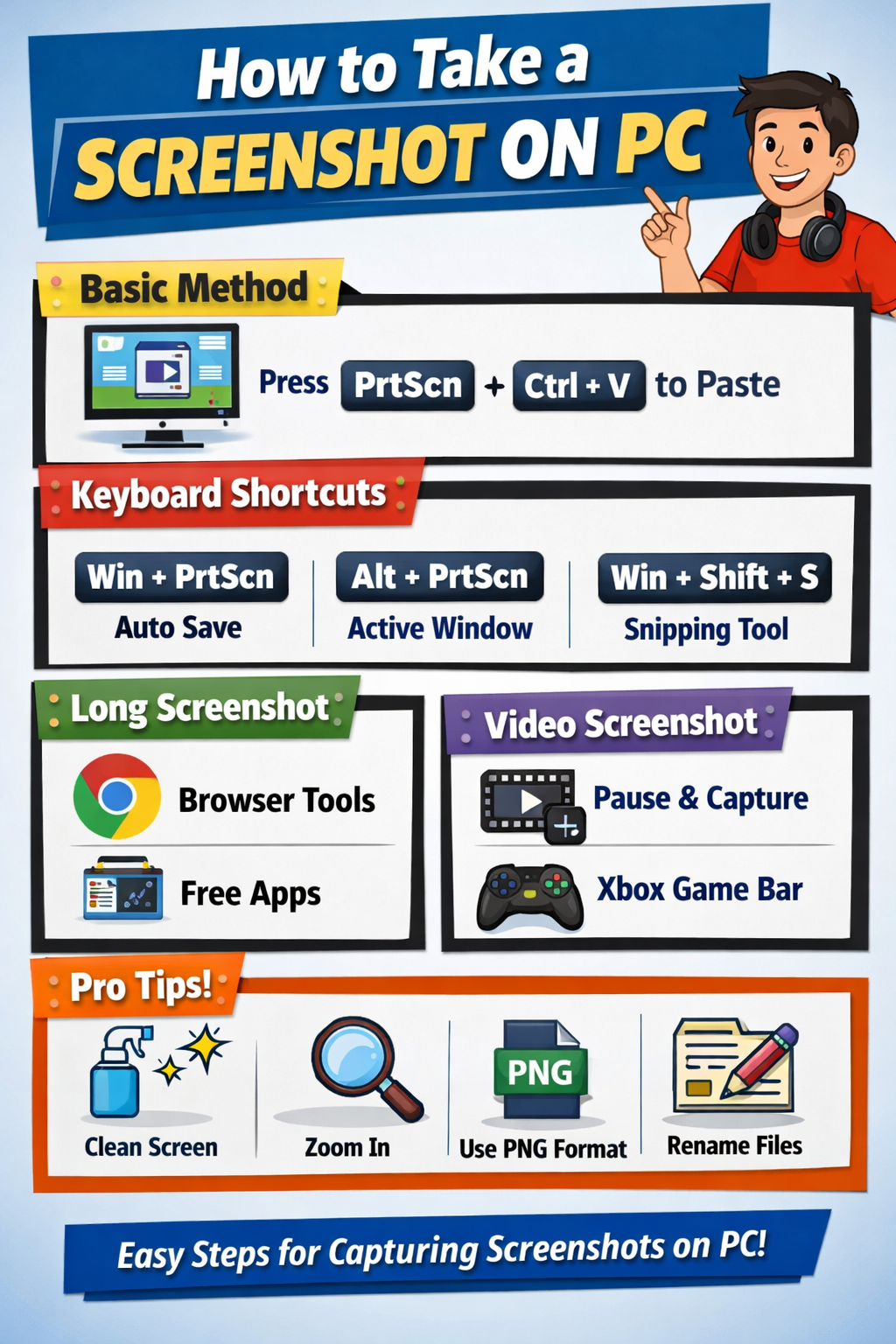
1. Use the Print Screen (PrtScn) Key
This is the fastest and most common method.
-
Press PrtScn
-
Your full screen is copied
-
Open Paint, Word, or Photos
-
Press Ctrl + V to paste
-
Save the image
This is the best for quick full-screen screenshots. Most of the users used this method.
How to Take a Screenshot on a PC Keyboard Shortcut
Keyboard shortcuts are faster and more professional. Here are the best ones:
2. Windows + PrtScn (Auto Save)
-
Press Windows key + PrtScn
-
Screen flashes briefly
-
Screenshot is saved automatically
You can find this: Pictures – Screenshot. This system is best for beginners and daily use.
Read More : Best Earning Money App for Beginners (Real, Free & Legit Guide)
3. Alt + PrtScn (Active Window Only)
-
Click on the window you want
-
Press Alt + PrtScn
-
Paste it using Ctrl + V
Perfect for capturing one app or browser window
4. Windows + Shift + S (Snipping Tool Shortcut)
This is my favourite method and the most powerful shortcut way. I can only used this method.
-
Press Windows + Shift + S
-
Screen dims
-
Select the area using the mouse.
-
Screenshot is copied
You can choose:
-
Rectangle
-
Freeform
-
Window
-
Full screen
How to Take a Long Screenshot on PC
Windows does not support long screenshots by default. But don’t worry—there are easy solutions.
Method 1: Use Browser Tools (Best for Web Pages)
-
Press Ctrl + Shift + I
-
Press Ctrl + Shift + P
-
Type:
Capture full size screenshot -
Press Enter
The browser will download the full page automatically. The best way to capture long web pages.
Method 2: Use Free Tools
Popular tools:
-
ShareX
-
PicPick
-
Snagit (paid)
These tools allow scrolling screenshots with one click. Ideal for tutorials and blog content
How to Take a Video Screenshot on PC
A video screenshot means capturing a frame from a video.
Method 1: Screenshot While Video Is Playing
-
Pause the video
-
Use Windows + Shift + S
-
Select the video area
-
Save the image
This method is quick and simple.
Method 2: Use Xbox Game Bar
Windows has a built-in screen capture tool.
-
Press Windows + G
-
Click the camera icon
-
The screenshot is saved automatically
This method works for YouTube, Netflix (local videos), and apps.
Where Are Screenshots Saved on Windows?
Depending on the method:
-
Windows + PrtScn → Pictures > Screenshots
-
Xbox Game Bar → Videos > Captures
-
Snipping Tool → Clipboard (you choose where to save)
Best Screenshot Method for You (Quick Guide)
| Need | Best Method |
|---|---|
| Full screen | Windows + PrtScn |
| Selected area | Windows + Shift + S |
| Active window | Alt + PrtScn |
| Long webpage | Browser full page capture |
| Video screenshot | Windows + Shift + S |
Tips for Better Screenshots
-
Clean your screen before capturing
-
Zoom in for clarity
-
Use PNG format for best quality
-
Rename files for easy search
These small steps improve image quality and professionalism.
Now you know how to take a screenshot on a PC, including keyboard shortcuts, long screenshots, and video screenshots. You don’t need extra software for most tasks—Windows already gives you everything you need. If you use screenshots for work, blogging, or tutorials, mastering these shortcuts will save you time every day.