
Why isn’t ChatGPT working?
ChatGPT is a popular tool that many people use to get answers and write text. Sometimes, it stops working. You might wonder, “Why isn’t ChatGPT working now?” This article will explain simple reasons why ChatGPT might not work. It will also help you fix common problems.
What Is ChatGPT?
ChatGPT is a computer program. It uses artificial intelligence (AI) to talk with people. You can ask it questions or ask it to write stories. It tries to give good answers. Many people use it for school, work, or fun.
Common Reasons ChatGPT Stops Working
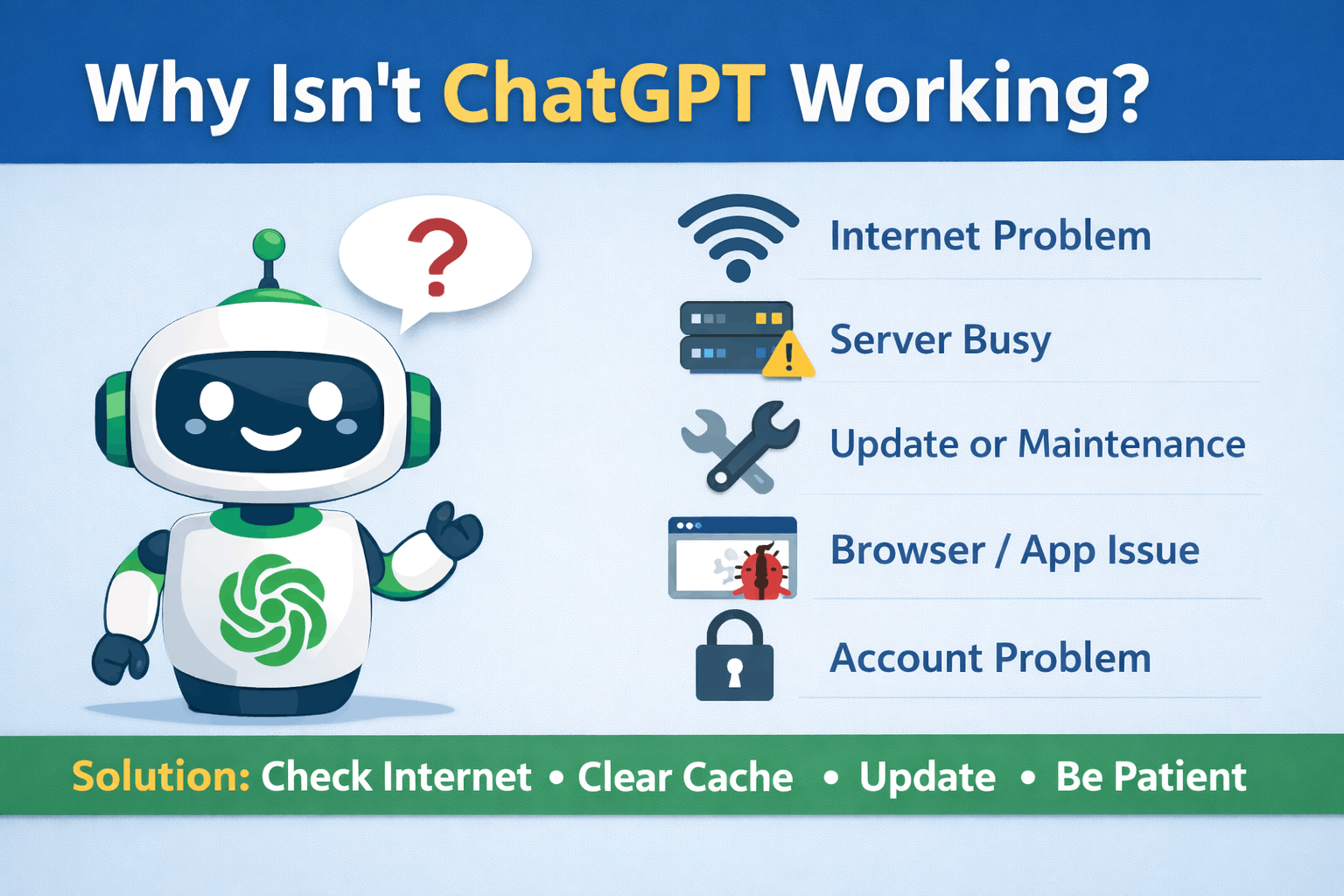
There are many reasons why ChatGPT might not work. Some are easy to fix. Others need more time. Let’s look at the most common problems.
1. Internet Connection Problems
ChatGPT needs the internet to work. If your internet is slow or not working, ChatGPT will not respond. Make sure your device is connected to Wi-Fi or mobile data. Try to open a website to check if the internet works.
2. Server Overload
Many people use ChatGPT at the same time. Sometimes, the servers get too busy. When this happens, ChatGPT may stop working or respond slowly. This is common during peak hours or when lots of people want to use it.
3. Software Updates And Maintenance
The ChatGPT team often updates the program. These updates help fix bugs and add new features. During updates, ChatGPT may be offline. Maintenance time can last from a few minutes to a few hours.
4. Browser Or App Issues
If you use ChatGPT on a web browser, your browser might cause problems. Old browser versions may not work well. Sometimes, cookies or cache make ChatGPT stop working.
If you use a ChatGPT app, the app may have bugs. Updating the app usually helps.
Read More: How to Delete Duplicate Photos in Google Photos—Easy 2026 Guide
5. Account Problems
Some ChatGPT services need you to log in. If your account has issues, you may not use ChatGPT. For example, if you forget your password or your account is locked, ChatGPT won’t work.
6. Input Limitations
ChatGPT has limits on how much text you can send or receive. If you send too many words or very long requests, it may stop responding. Sometimes, it takes too long to answer, and the connection ends.
7. Device Problems
Your device can cause problems, too. If your phone or computer is old or full of apps, it may work slowly. This can stop ChatGPT from working well.
How to Fix ChatGPT When It Is Not Working
Now that you know the reasons, let’s see how to fix ChatGPT if it stops working.
Check Your Internet Connection
Make sure your internet works. Open a website to test. If the internet is slow or off, try restarting your modem or router. Sometimes, moving closer to the Wi-Fi router helps.
Wait For Server Issues To Clear
If ChatGPT servers are busy, wait for some time. Try again later. Usually, the problem clears after a short time.
Restart Your Browser Or App
Close the browser or app and open it again. This can fix small bugs. You can also restart your device to clear memory and speed up performance.
Clear Browser Cache And Cookies
Old data in your browser can cause issues. Clearing the cache and cookies helps. In browser settings, find “Clear browsing data” and choose to clear cache and cookies.
Update Your Browser Or App
Make sure your browser or app is the latest version. Updates fix bugs and improve performance. Go to the app store or browser website to check for updates.
Read More: How Much Does YouTube Pay Per View, 1,000 & 1 Million Views in 2026 (Real USD Earnings)
Check Your Account Status
Log out and log back in. If you forgot your password, use the “forgot password” feature. If your account is locked, contact support for help.
Use Shorter Inputs
Try to send shorter questions or messages. Avoid very long or complicated requests. This helps ChatGPT respond faster and avoid timeouts.
Use A Different Device Or Browser
If problems continue, try another device or browser. Sometimes, device settings cause issues. Using a different device can help find the problem.

Credit: community.openai.com
When to Contact Support
If you tried all fixes and ChatGPT still doesn’t work, contact support. They can help with account problems or technical issues. Usually, support answers within a day or two.
Summary Table: Causes and Fixes for ChatGPT Problems
| Problem | Reason | Simple Fix |
|---|---|---|
| ChatGPT not responding | Internet connection bad | Check Wi-Fi or mobile data |
| ChatGPT is slow or busy | Server overload | Wait and try again later |
| Cannot open ChatGPT | Software update or maintenance | Wait for the update to finish |
| ChatGPT is not loading properly | Browser cache or cookies | Clear cache and cookies |
| Account problems | Login issues or locked account | Reset password or contact support |
| ChatGPT crashes or freezes | Old browser or app | Update browser or app |
| Slow or no response | Long or complex input | Use shorter questions |
Tips to Keep ChatGPT Working Smoothly
- Keep your device and browser updated.
- Use a stable internet connection.
- Clear browser data regularly.
- Take breaks when servers are busy.
- Use simple, clear questions for better answers.
- Check your account status often.

Credit: www.youtube.com
My Final Opinion
ChatGPT is a useful tool. But like all technology, it can have problems. Most issues happen because of the internet, servers, or devices. You can fix many problems yourself. If not, support is there to help.
Remember, patience helps. Sometimes you just need to wait. Try the simple steps in this article. Soon, ChatGPT will work again for you.
Frequently Asked Questions
Why Isn’t Chat Gpt Responding To My Questions?
Chat GPT may not respond due to server issues or high traffic. Check your internet connection and try again later.
How Do I Fix ChatGPT Loading Problems?
Clear your browser cache, refresh the page, or restart the app. Sometimes, a simple reload solves loading issues.
Can ChatGPT Be Down For Maintenance?
Yes, scheduled maintenance can make ChatGPT temporarily unavailable. Usually, these are brief and announced in advance.
Why Does ChatGPT Give Incorrect Answers Sometimes?
Chat GPT learns from data but can make mistakes. Always verify important information from trusted sources.